Confirm the exact local mode and headcount
Check the current PC store page for Shared/Split Screen Co-op, Local Co-op, or an equally explicit publisher statement. Online Co-op, multiplayer, Remote Play Together, and a console video do not by themselves establish that two people can play locally on the PC edition.
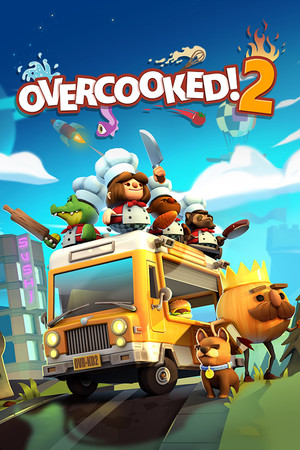
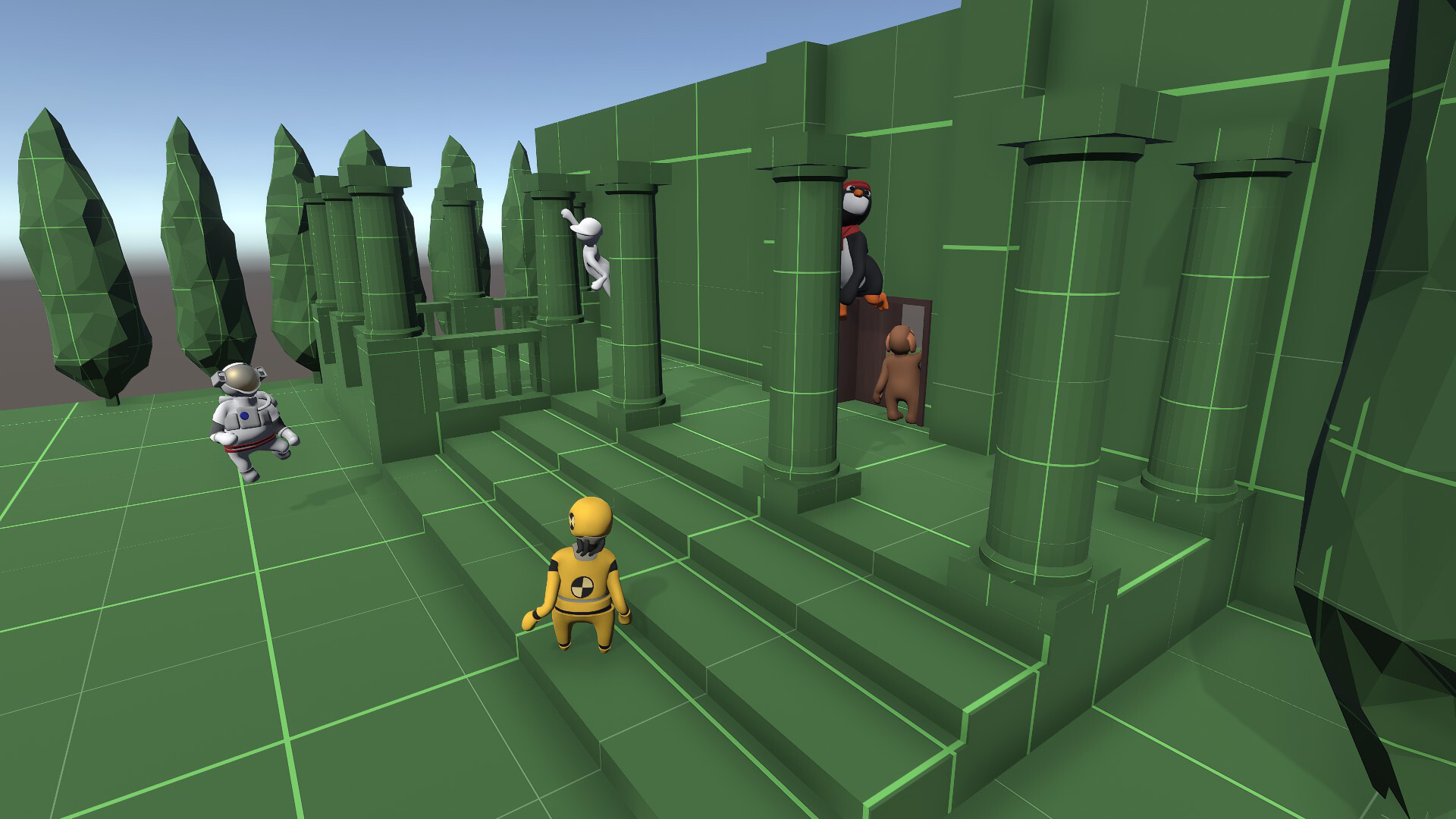
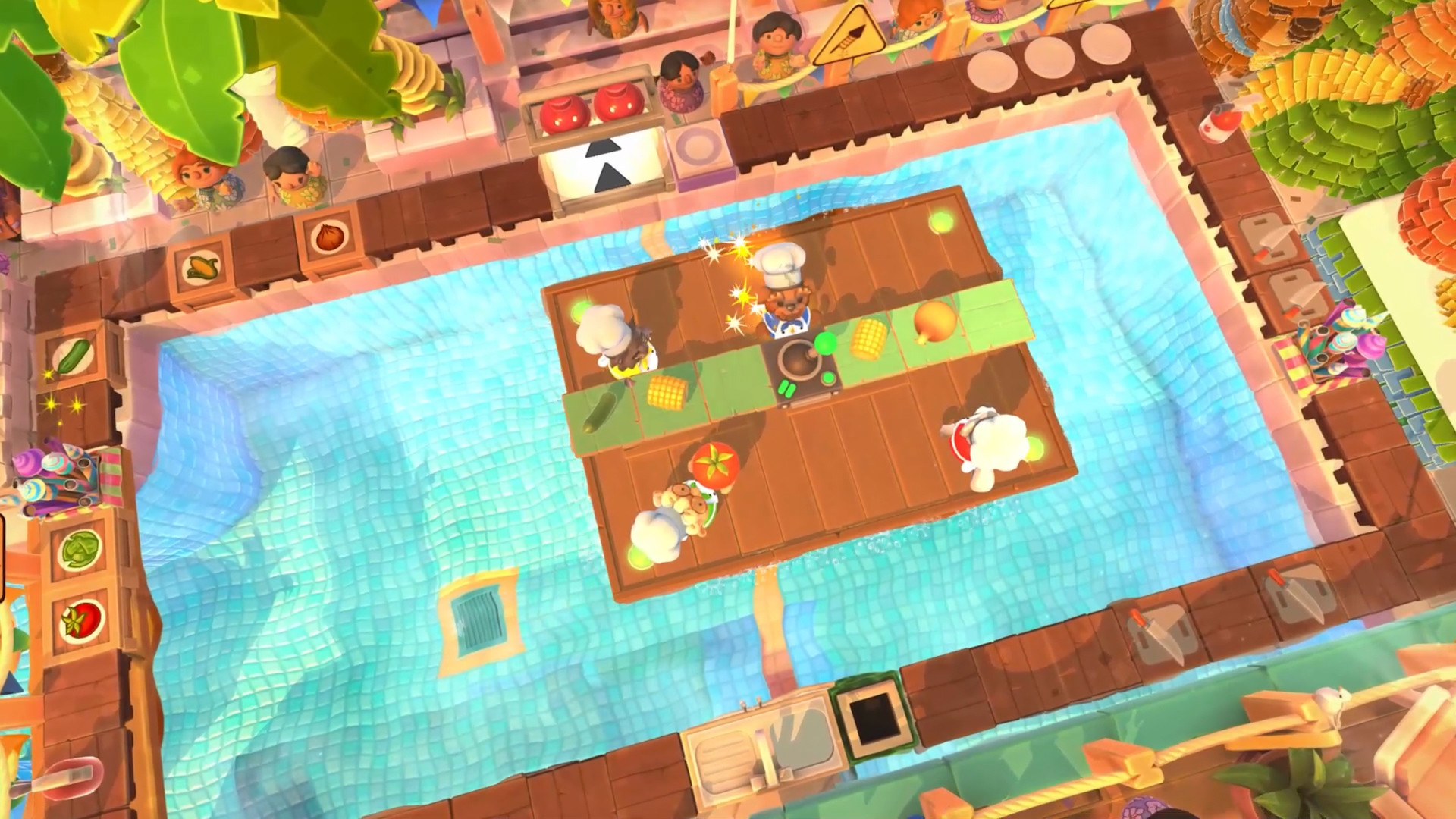
Read the player-count sentence as well as the feature labels. Overcooked! 2 explicitly describes couch or online play for up to four players. Human: Fall Flat's current Steam page lists shared/split-screen co-op while separately describing up to eight players online. That is a reason to verify the local headcount in the actual mode rather than transferring the online number to the sofa setup.
Sources: Overcooked! 2 — official Steam local and online player information · Human: Fall Flat — official Steam shared/split-screen features
Prove both controllers in the real mode
Connect and wake every controller before launching the game. Open the intended local mode, join every player, then move or confirm with each device separately. The pass condition is not that Steam sees two devices; it is that controller one affects player one and controller two affects player two without also moving the same character.
Valve's Steam Input player guide documents game-specific controller configuration once a device is connected. It also notes that an external remapping tool can present a PlayStation controller to Steam as an emulated Xbox 360 controller. If button prompts or device identities look wrong, check which layer is translating the input and retest after changing one thing. Do not install several remappers as a first guess.
If someone needs a different layout, check the game's own controls before the evening. Microsoft's input guideline recommends remappable actions and alternatives to combinations or long holds. Platform remapping can help, but a comfortable game-specific layout is stronger evidence for the exact actions that player will repeat.
- Join player two before a long intro, character creator, or save selection.
- Press the same face button on each controller and confirm it affects a different player.
- Open a pause or settings screen with each device so nobody is locked out of essential menus.
- Check battery level and keep a cable or known-good spare within reach.
Sources: Valve — Steam Input setup and controller configuration for players · Microsoft — Xbox Accessibility Guideline 107: Input
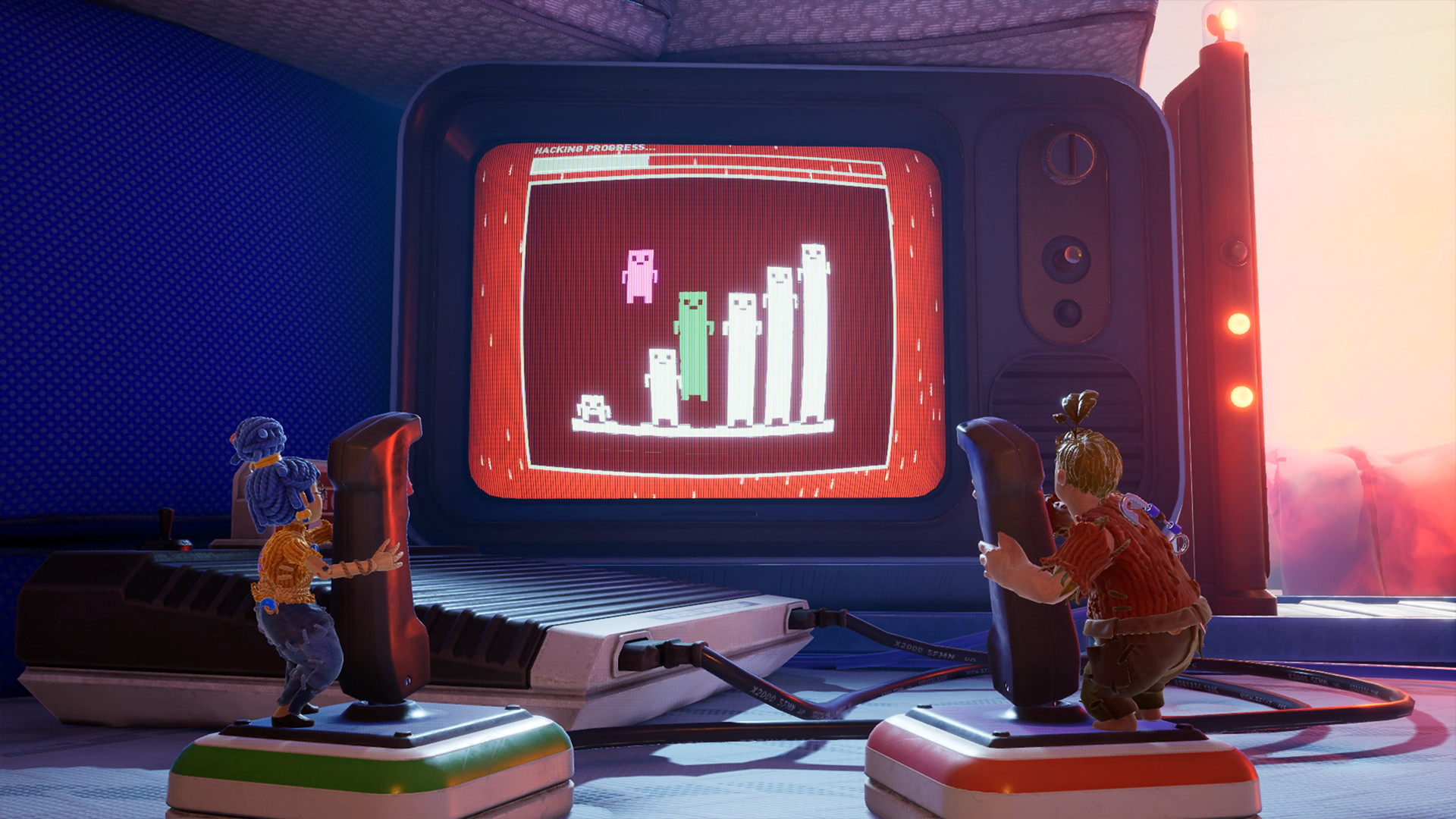 It Takes Two
Cody and May use separate controls in this It Takes Two scene. It illustrates two active roles, but does not prove that a particular pair of PC controllers will be assigned correctly.
Official screenshots: It Takes TwoChoose the screen layout before the invitation
A shared camera preserves the whole television for one scene, which can keep prompts and characters larger. The tradeoff is that players may be tethered to the same area or need to agree where the camera moves. Test what happens when the two players walk in opposite directions.
Split screen gives each player a separate view, but halves or otherwise divides the available picture. Check whether the game divides horizontally or vertically, whether the layout can be changed, and whether the room's seating makes one panel harder to see. Do not assume a large 4K television solves small HUD text; viewing distance and the game's own scaling still matter.
Sources: Microsoft — Xbox Accessibility Guideline 101: Text display · Human: Fall Flat — official Steam shared/split-screen features
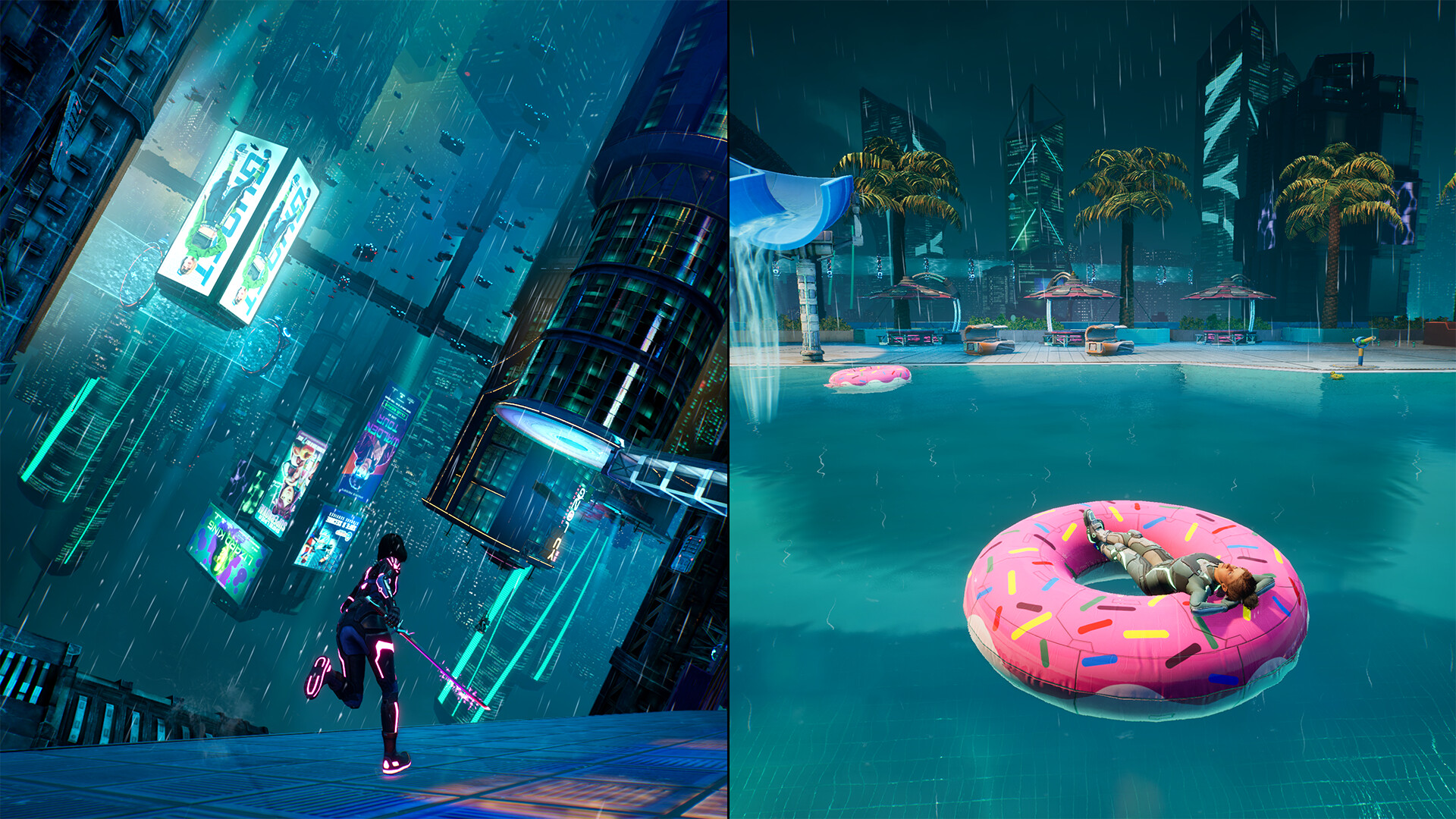 Split Fiction
Split Fiction visibly divides the scene between two players. Use the actual multiplayer view to judge sofa readability; a supplied screenshot cannot establish comfort at your distance.
Official screenshots: Split FictionRun the sofa readability check in multiplayer
Sit in the real seats and inspect the smallest information used repeatedly: player labels, objectives, button glyphs, timers, inventory text, subtitles, score panels and warnings. Check a bright scene and a dark one. If the game offers subtitle, interface or HUD scaling, change it before judging the result.
Microsoft's text guideline tells developers to account for the typical couch-to-television distance and provide scaling. It also calls out button glyphs and important text, because enlarging a sentence does not help when the control icon remains tiny. Your home check is simpler: can the least experienced player read the next required action immediately without leaning forward?
Sources: Microsoft — Xbox Accessibility Guideline 101: Text display
Test joining, disconnecting and returning
Start a disposable round or early section, then turn off or disconnect the second controller. Reconnect it and confirm the correct player returns without taking over the first device. If the game uses profiles, guest slots, characters or separate progress, learn that flow before it matters.
Quit through the normal menu and reopen the local mode once. Confirm which profile owns the save, whether the second player must join again, and whether both players can resume the intended characters. This is a setup test, not permission to experiment on an important save; use a fresh slot when the result is uncertain.
Use a ten-minute dress rehearsal and a real backup
Launch the game from the same Windows account, Steam account, display and seats you will use. Join everyone, finish one ordinary objective or round, open the relevant settings, disconnect and rejoin player two, then return to the main menu. Time the whole process. A smooth title screen is not enough if the second player appears only after fifteen minutes of setup.
Keep one familiar local game installed and tested with the same controllers. Switch when the main game still cannot assign players, the divided view is uncomfortable, or the opening asks the room to wait. The backup is part of the plan, not an admission that the first choice was wrong.
- Pass: every device owns a separate player and the necessary prompts are readable from every seat.
- Fix first: one input controls two players, button prompts disagree with the device, or rejoining changes ownership.
- Choose another game tonight: the exact PC edition lacks the needed local mode or the shared view remains unreadable.